

navigation
#sdk
#activity
#linearlayout
#gravity
#customview
#xml
#textview
#ellipsize
#design
#letterspacing
#pattern
#intent
#optimization
#multitouch
#theme
#permission
#camera
#library
#recyclerview
#remoteviews
#kotlin
#color
#alpha
#startup
#fullscreen
#andriodstudio
#newproject
#logcat
#crash
#tool
#widget
#preview
#debug
#restart
#focus
#layouteditor
#email
#sdk
#activity
#linearlayout
#gravity
#customview
#xml
#textview
#ellipsize
#design
#letterspacing
#pattern
#intent
#optimization
#multitouch
#theme
#permission
#camera
#library
#recyclerview
#remoteviews
#kotlin
#color
#alpha
#startup
#fullscreen
#andriodstudio
#newproject
#logcat
#crash
#tool
#widget
#preview
#debug
#restart
#focus
#layouteditor
horizontal linear layout by default aligns text views to their baselines
to make layoutParams.gravity work, call isBaselineAligned = false
#sdk #linearlayout #gravity
to make layoutParams.gravity work, call isBaselineAligned = false
#sdk #linearlayout #gravity
the letter spacing units in figma and text view are different
use this formula for text view: t
#sdk #design #textview #letterspacing
use this formula for text view: t
extview.letterSpacing = figmaSpacing / fontSizeDp#sdk #design #textview #letterspacing
obsolete since the release of the new logcat in android studio dolphin
the “show only selected application” logcat filter sometimes doesn't show the logs after a crash
to avoid this, create your own filter: edit filter configuration -> add(+) -> enter your app package
#andriodstudio #logcat #crash
to avoid this, create your own filter: edit filter configuration -> add(+) -> enter your app package
#andriodstudio #logcat #crash
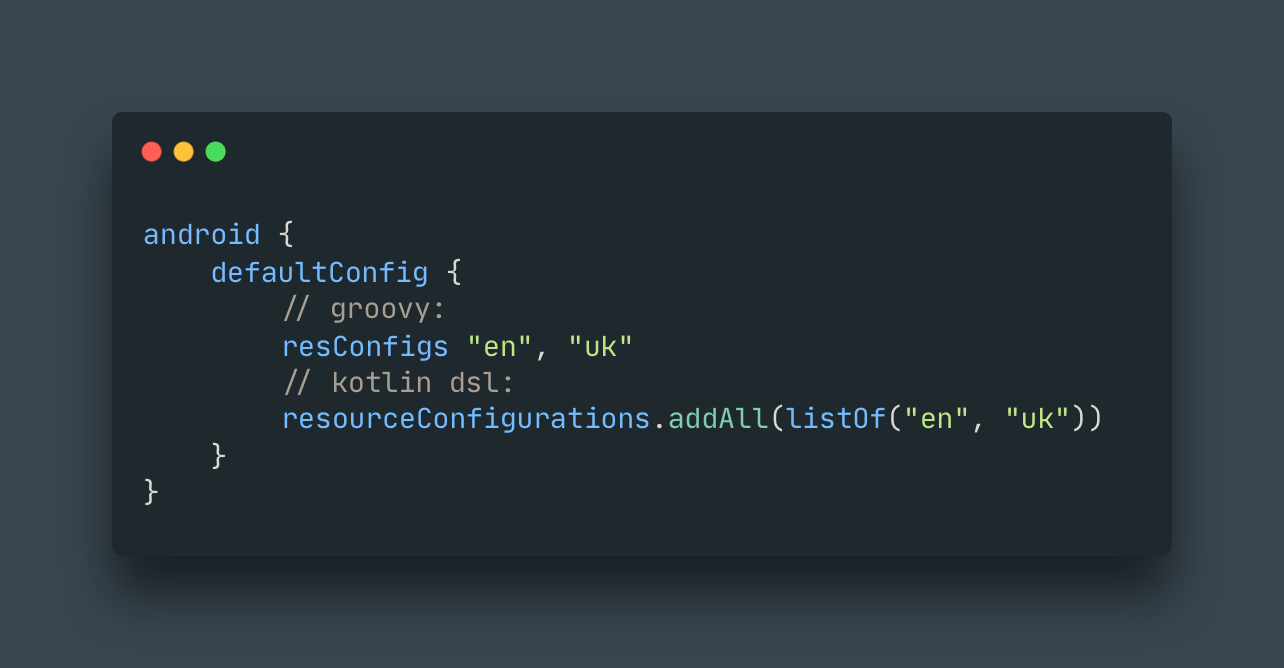
even if you chose kotlin when creating a new project, android studio will create a java folder for your code:
you can easily rename it to
#andriodstudio #newproject
app/src/main/javayou can easily rename it to
kotlin: select java folder, press shift+F6, enter the new name and click refactor#andriodstudio #newproject
when you create a custom view based on xml layout you extend your class from some view group and also have a root view group in the xml. as a result you get an extra container
to avoid this, use the
#sdk #customview #xml
to avoid this, use the
<merge> tag in the xml as the root tag, and specify tools:parentTag="<your view group>"#sdk #customview #xml
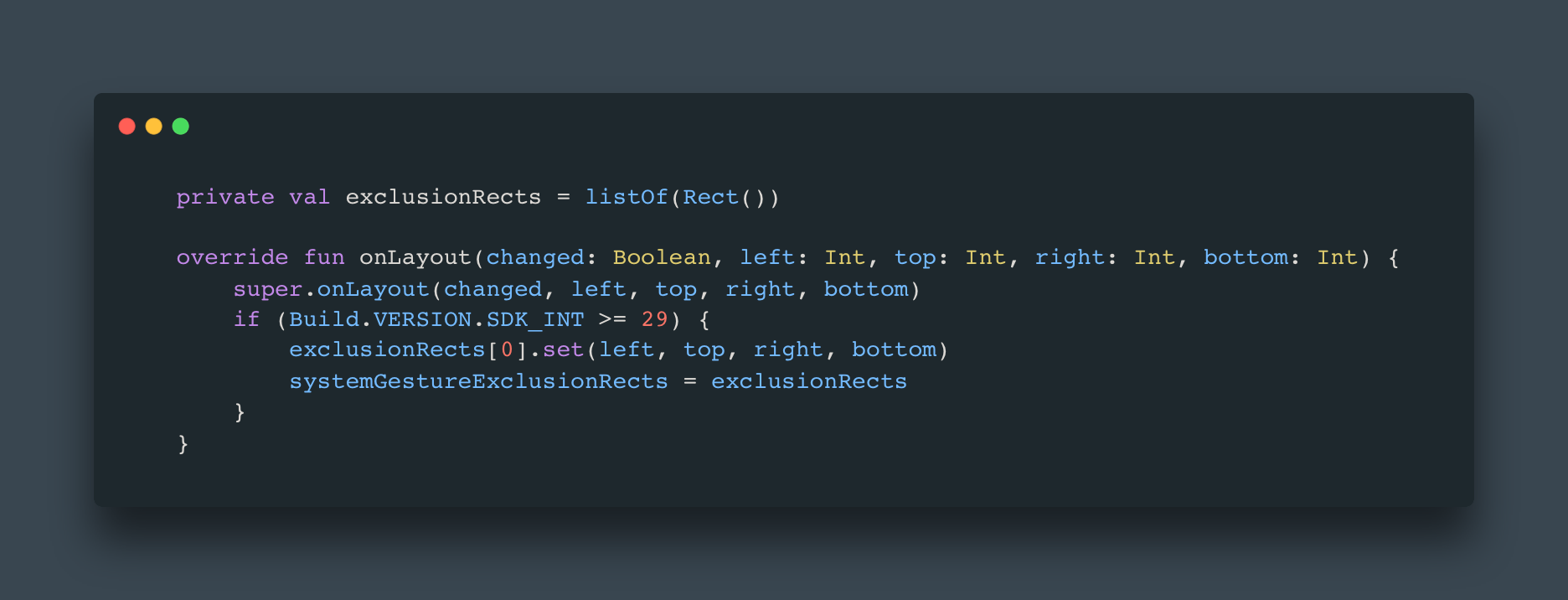
since android 10, there is gesture navigation in the system. if your custom view conflicts with gestures (e.g. drawing or slider), don't forget to add exclusion
it is recommended to override
#sdk #gestures #customview
it is recommended to override
onLayout in your view and set exclusion there whenever the position or size are changed#sdk #gestures #customview
one of the ways to optimize the recycler view is to call the setHasFixedSize(true). there is a common misunderstanding about what this method means
what it really means is that the recycler view should not change its size depending on its content, e.g. the number of items. this way it allows to optimize re-measuring
#library #recyclerview #optimization
what it really means is that the recycler view should not change its size depending on its content, e.g. the number of items. this way it allows to optimize re-measuring
#library #recyclerview #optimization
when you create a widget – you need to set the preview
there is a wonderful utility for this
#tool #widget #preview
there is a wonderful utility for this
#tool #widget #preview