
Change Languages For Chinese Version to English Language:
1. Click on settings
2. Choice USA English Language
1. Click on settings
2. Choice USA English Language
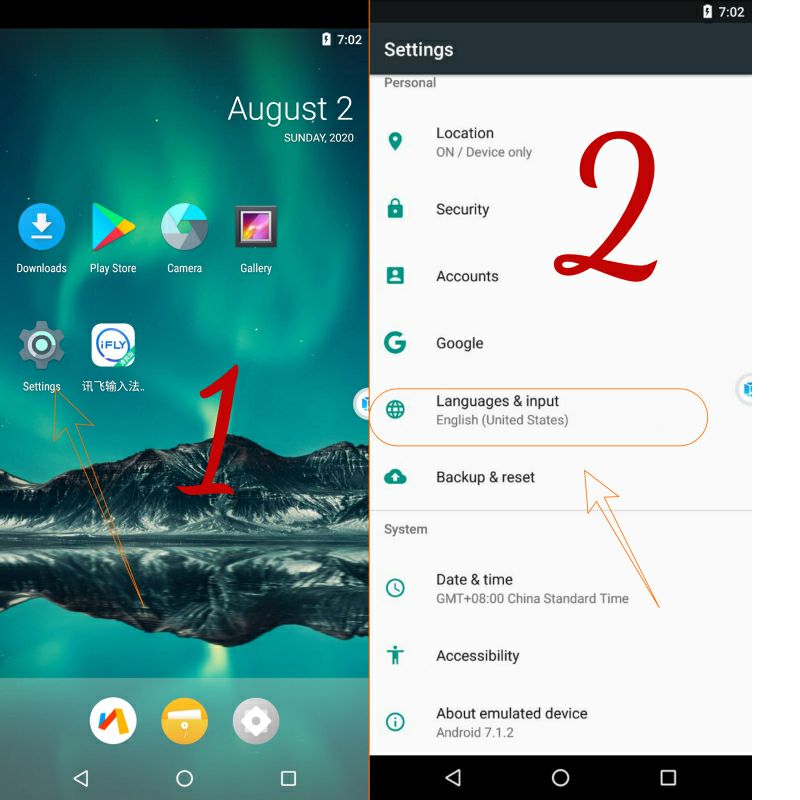
But even with the conversion of the language into English:
The settings option will remain on the floating icon and what it contains in Chinese.
So this is a picture to help you understand the options a bit
The settings option will remain on the floating icon and what it contains in Chinese.
So this is a picture to help you understand the options a bit

Changing the model name or number in VMOS:
is not something every Android user seeks to do but it’s still a useful trick for some users. It was really very easy for the rooted users to change Android device model number on KitKat, Lollipop and older versions of the OS but things changed after the introduction of Android 6.0 Marshmallow. So, if you own a rooted phone, here’s how you can change Android device model number using the steps described below. To change Android phone name though, you do not require root privilege.
this it's old way with root
Now, VMOS supports this through a new option that appears in the settings that enables you to change the model of your phone. Please try it and send us information about what happened after the experiment.
If you have another method that has been tried successfully, like modifying Build.prop on your phone, please let us know by feedback with hashtag #feedback or #solution.
Banning game can be solved in PUBG game.
is not something every Android user seeks to do but it’s still a useful trick for some users. It was really very easy for the rooted users to change Android device model number on KitKat, Lollipop and older versions of the OS but things changed after the introduction of Android 6.0 Marshmallow. So, if you own a rooted phone, here’s how you can change Android device model number using the steps described below. To change Android phone name though, you do not require root privilege.
this it's old way with root
Now, VMOS supports this through a new option that appears in the settings that enables you to change the model of your phone. Please try it and send us information about what happened after the experiment.
If you have another method that has been tried successfully, like modifying Build.prop on your phone, please let us know by feedback with hashtag #feedback or #solution.
Banning game can be solved in PUBG game.

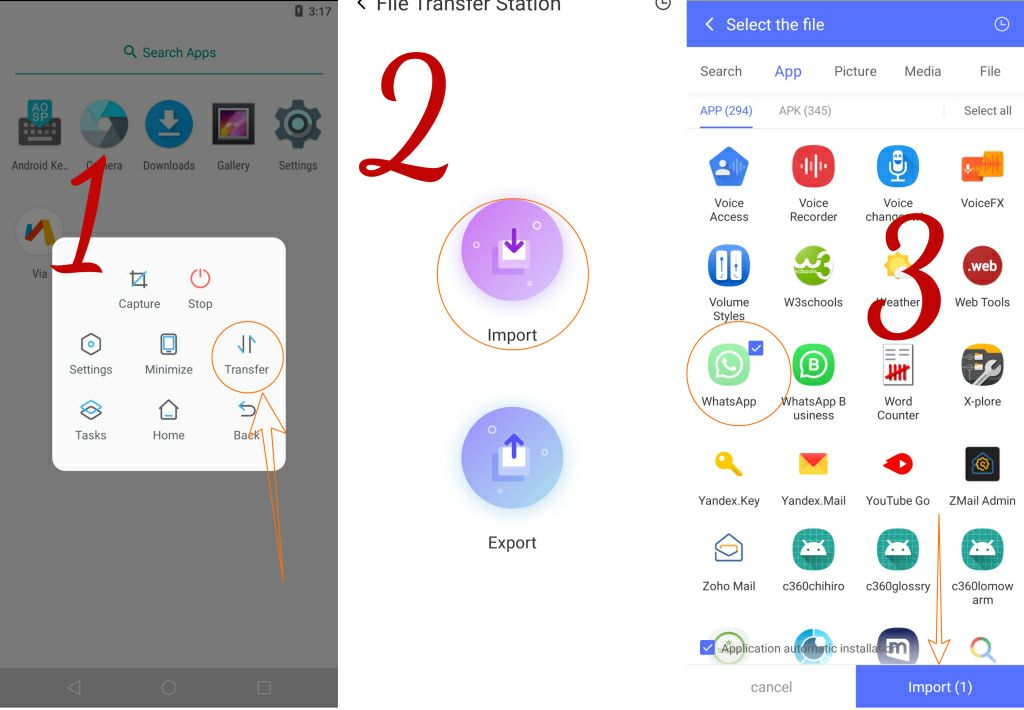
How to import files to VMOS:
This way for VMOS Pro Global and VMOS Chinese Version
1. Click on the floating icon
2. Click on Transfer
3. Click on import
4. Choice your app
5. ✔️ mark on automatic installation
This way for VMOS Pro Global and VMOS Chinese Version
1. Click on the floating icon
2. Click on Transfer
3. Click on import
4. Choice your app
5. ✔️ mark on automatic installation
How to import files to VMOS:
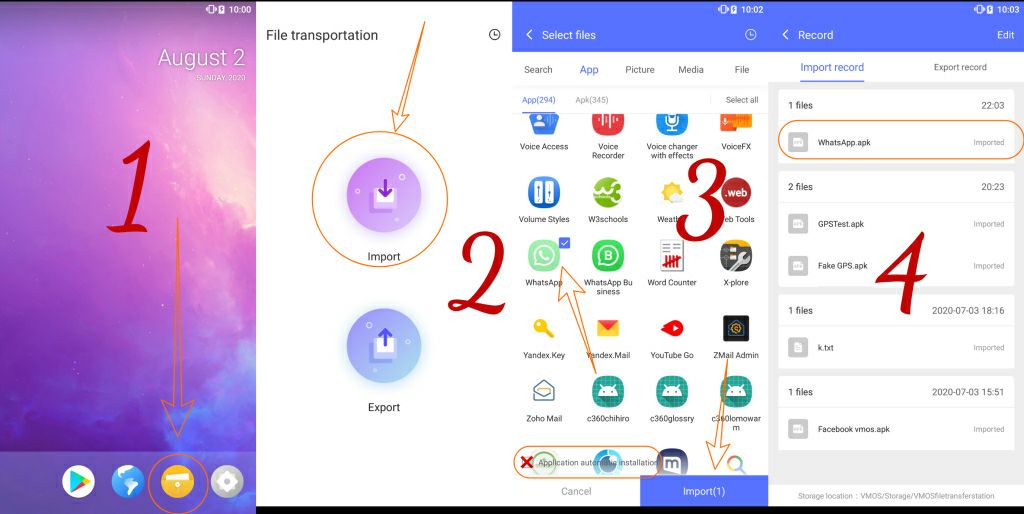
This way for VMOS 1.0.63 Global and 1.0.31 Chinese version
1. Click on File Transfer app
2. Click on import
3. Choice your app
4. ❌ Don't mark on automatic installation
5. Click on the app to install him.
This way for VMOS 1.0.63 Global and 1.0.31 Chinese version
1. Click on File Transfer app
2. Click on import
3. Choice your app
4. ❌ Don't mark on automatic installation
5. Click on the app to install him.
On the issue of security and privacy:
Modified copies of VMOS don't used in any way, and no question is ever permitted about those versions
We are not responsible for what happens to your data as a result of its use
To check if you have the official or modified version, check these signatures:
VMOS Global 1.0.63:
▫️MD5 checksum:
▫️SHA1 checksum:
▫️SHA256:
▫️Signature:
VMOS Chinese Version 1.0.31:
▪️MD5 checksum:
▪️SHA1 checksum:
▪️SHA256:
▪️Signature:
Chinese VMOS Pro:
▪️MD5 checksum:
▪️SHA1 checksum:
▪️SHA256:
▪️Signature:
VMOS Pro Global:
▫️MD5 checksum:
▫️SHA1 checksum:
▫️SHA256:
▫️Signature:
Modified copies of VMOS don't used in any way, and no question is ever permitted about those versions
We are not responsible for what happens to your data as a result of its use
To check if you have the official or modified version, check these signatures:
VMOS Global 1.0.63:
▫️MD5 checksum:
38d4f424aac5ceb007044757dfa6f586▫️SHA1 checksum:
8649f3d7eaecfacd567435d8f6c3b7270b0311ae▫️SHA256:
6175f97b58a1385d3ac5847c1dcc040d2048b1bb5f862ba0f29663198f6d8cf0▫️Signature:
e89b158e4bcf988ebd09eb83f5378e87VMOS Chinese Version 1.0.31:
▪️MD5 checksum:
ea85e1845348c8b9c8eaf2d70074e802▪️SHA1 checksum:
25a0a27e1f60435b36023fee9d4dc12218927dd2▪️SHA256:
42752cb2a5713dfde50956da218731ff407bee381e80b676bd128fff5f972ca8▪️Signature:
aa7851eaa29b87970354c15241192d40Chinese VMOS Pro:
▪️MD5 checksum:
0d6264b99c19764195284007755d6129▪️SHA1 checksum:
5e638a7afabc15eca2879a50b573433fae153636▪️SHA256:
8e8917336f37f1cf13d2efd7577480c6e4e6165d392834018a9fc2aa020203bd▪️Signature:
dead9c09203dd60eb4d1b885b8c13204VMOS Pro Global:
▫️MD5 checksum:
8a460e2931b286ee283bd6ac96435a9a▫️SHA1 checksum:
18081d2aa0bdd4aefdf5f582620ee87658449ede▫️SHA256:
b232a637c10805b377f91d1361bc38db44f9e935edc55e70022b1c1a65fdd9bd▫️Signature:
dead9c09203dd60eb4d1b885b8c13204
👍1
Error installing the package:
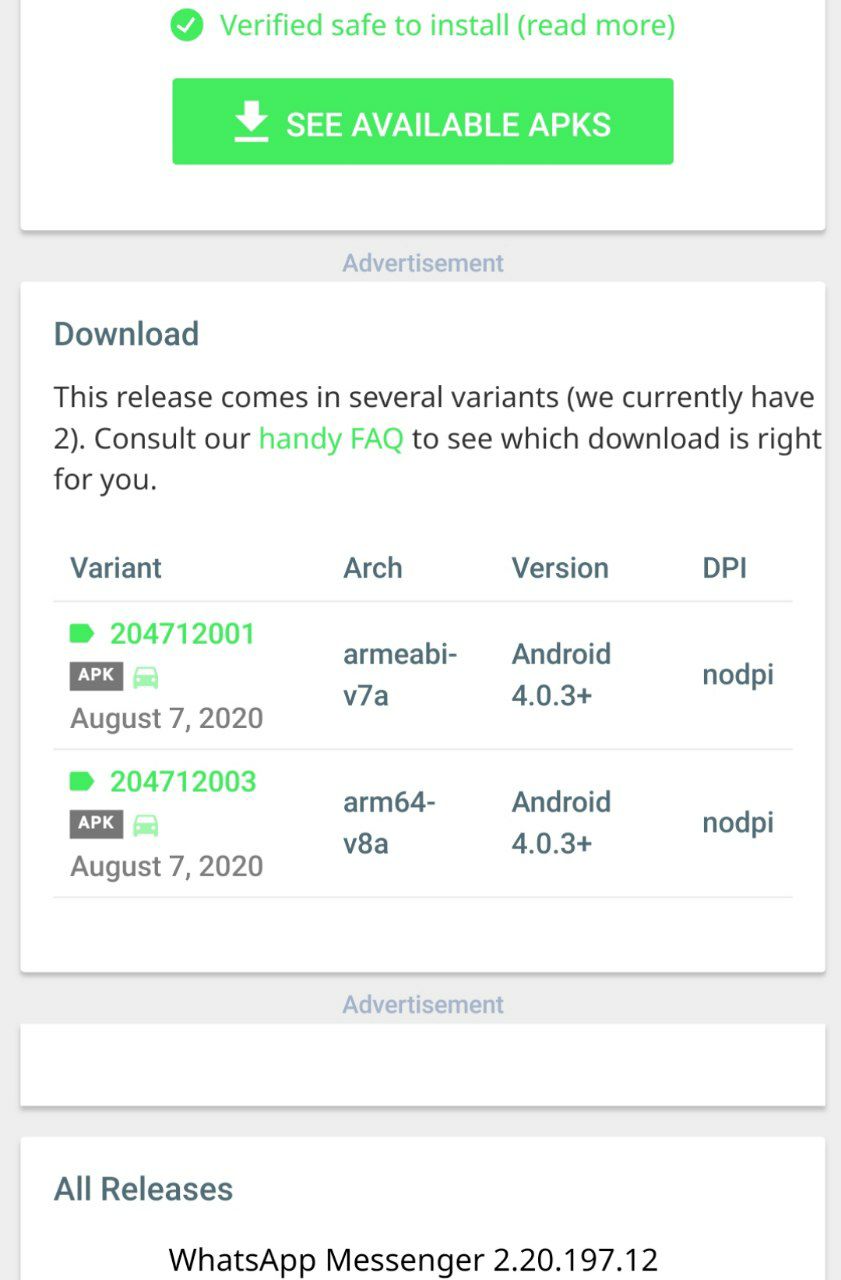
1. ROMs Android 5 it's 32bit
Here you can install any application that works with the architecture armeabi-v7a
2. ROMs Android 7 in global 64bit
Here you can install any application that works with the architecture arm64-v8a
3. Check arm your app if 64bit or 32bit
4. You can import any app from your phone to vmos if you are used ROMs Android 7
Note: you can't import app from your phone to VMOS version 1.0.63 or VMOS pro Android 5.1 if your phone 64bit and you have download the app from play store
Note: some of apps can't installed if you download it from Play Store because Maybe they're apks
If you have a problem after taking the requirements to install it, try downloading it from the Play Store or Aurora inside VMOS
1. ROMs Android 5 it's 32bit
Here you can install any application that works with the architecture armeabi-v7a
2. ROMs Android 7 in global 64bit
Here you can install any application that works with the architecture arm64-v8a
3. Check arm your app if 64bit or 32bit
4. You can import any app from your phone to vmos if you are used ROMs Android 7
Note: you can't import app from your phone to VMOS version 1.0.63 or VMOS pro Android 5.1 if your phone 64bit and you have download the app from play store
Note: some of apps can't installed if you download it from Play Store because Maybe they're apks
If you have a problem after taking the requirements to install it, try downloading it from the Play Store or Aurora inside VMOS
Snapchat & All apps & games needs SafetyNet:
Currently, you cannot use Snapchat and those apps and games in VMOS due to a problem SafetyNet
Currently, you cannot use Snapchat and those apps and games in VMOS due to a problem SafetyNet

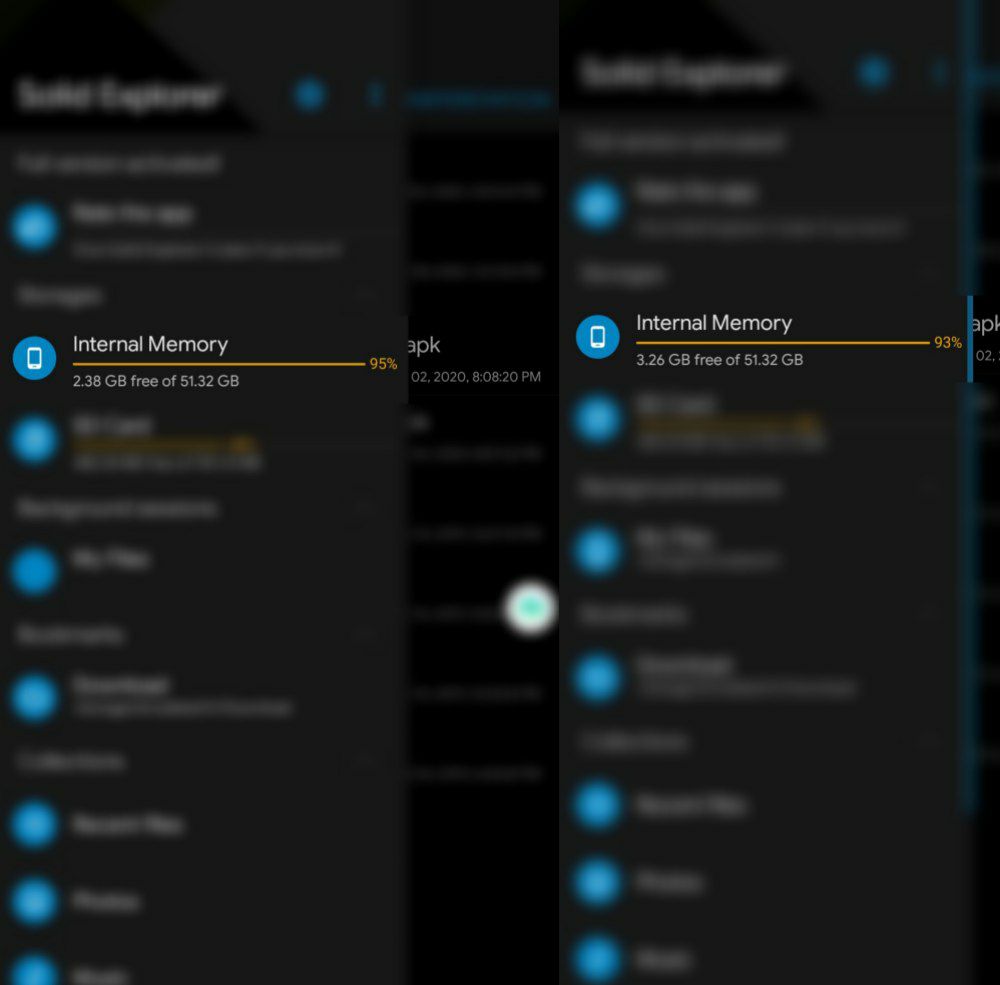
Phone space consumption:
Pay attention to the phone space when adding a new ROM, after downloading it, more phone space is consumed. So if you have roms that you do not use, remove them from it
Pay attention to the phone space when adding a new ROM, after downloading it, more phone space is consumed. So if you have roms that you do not use, remove them from it
Nice feature:
You can click and drag on the application icon to the left when it is green to display the application.
Without clicking the Applications button and the slot
You can click and drag on the application icon to the left when it is green to display the application.
Without clicking the Applications button and the slot

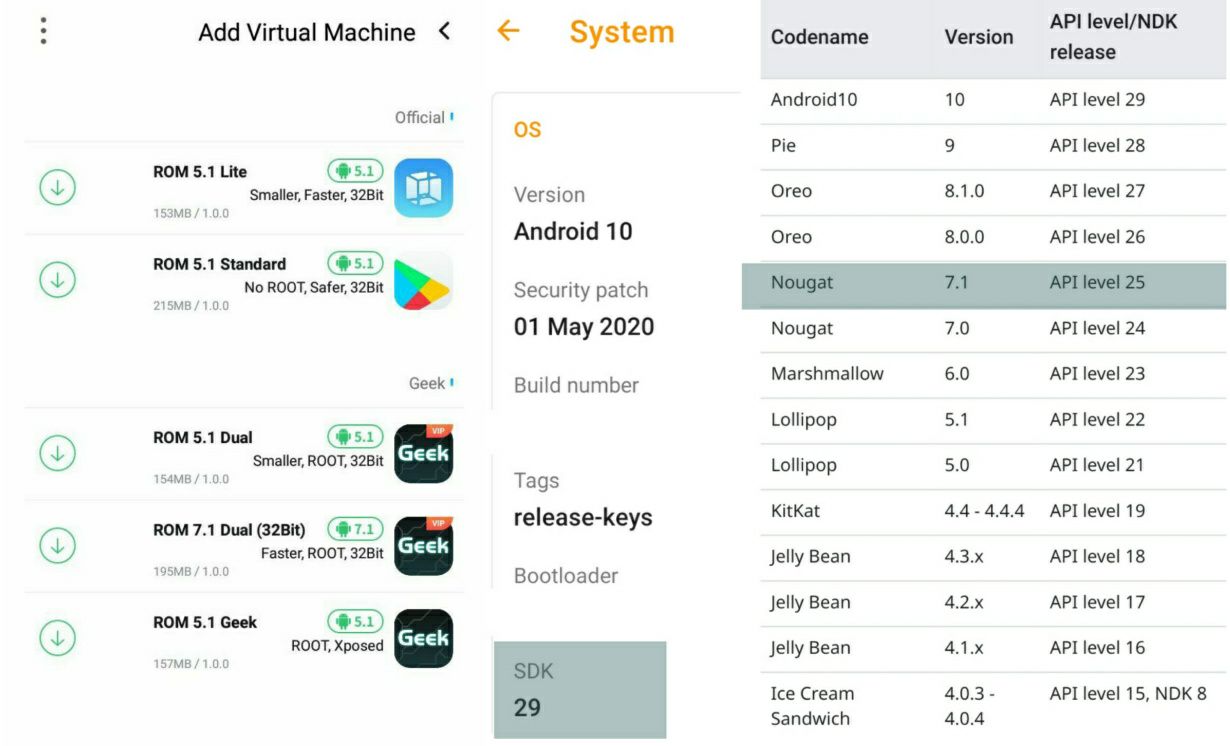
Why this happened?
You can't download ROMs Android 7 64bit?
Because your phone not supported 64bit and your os isn't android 7.1 SDK 25
You can't download ROMs Android 7 64bit?
Because your phone not supported 64bit and your os isn't android 7.1 SDK 25
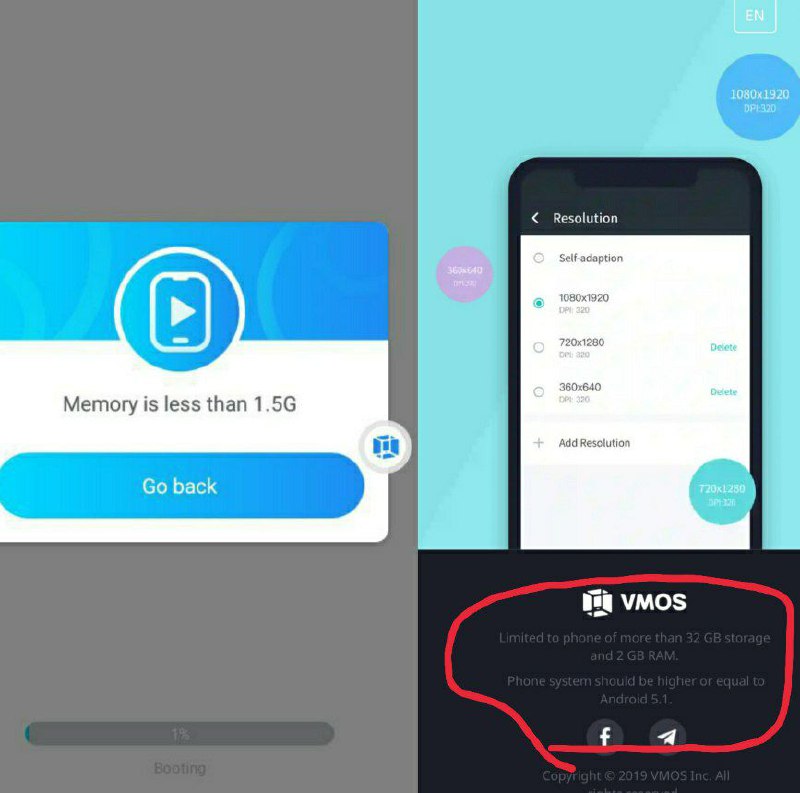
A message appears containing insufficient space message:
When you see this message.
This indicates that your phone does not meet the application requirements
When you see this message.
This indicates that your phone does not meet the application requirements
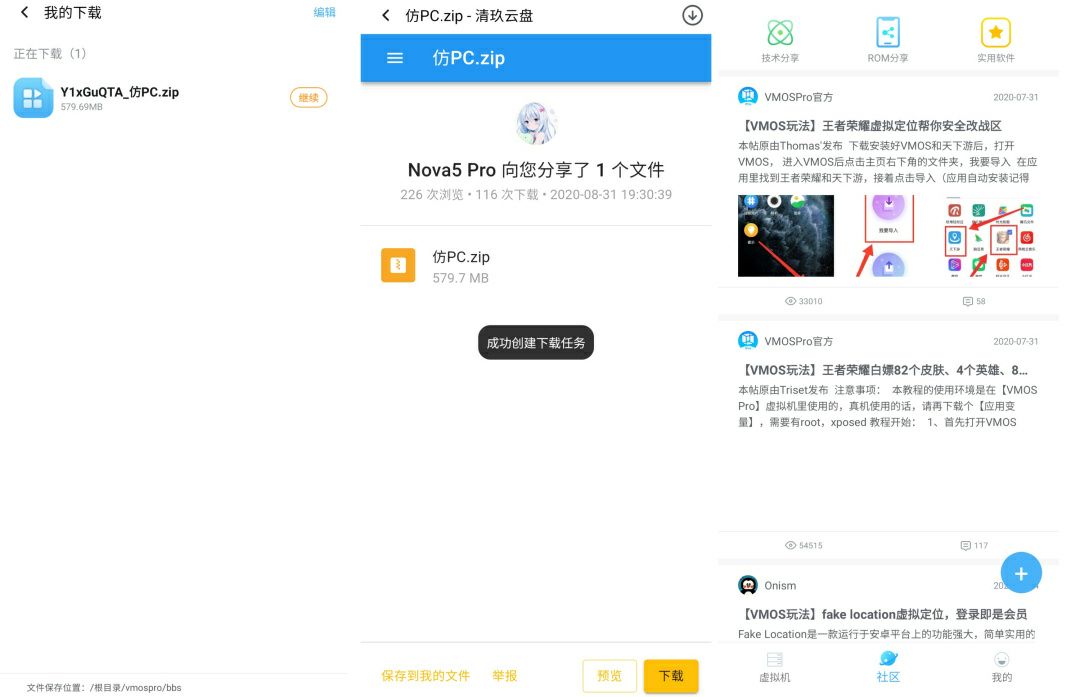
Custom Roms:
The developers have allowed creating custom ROMs with many features is done by third-party developers.
But it must be noted
The temporarily imported ROM needs to be modified based on the official VMOS package before it can be imported.
You can download a lot of custom ROMs with root features through the Chinese version
Note: remember use it at your own risk and don't ask for it in the group
The developers have allowed creating custom ROMs with many features is done by third-party developers.
But it must be noted
The temporarily imported ROM needs to be modified based on the official VMOS package before it can be imported.
You can download a lot of custom ROMs with root features through the Chinese version
Note: remember use it at your own risk and don't ask for it in the group
Proxy Socks5 Only:
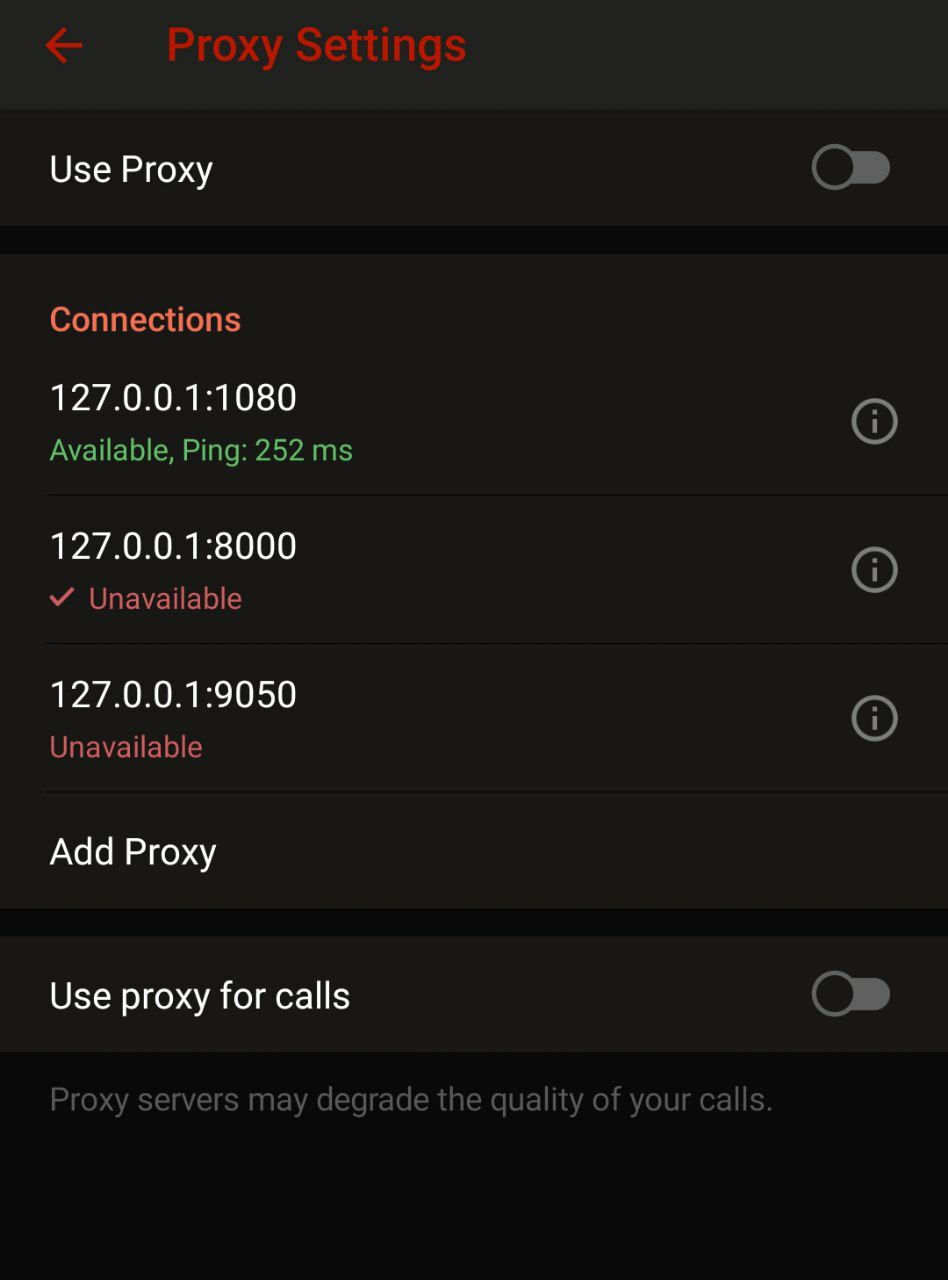
Who needs a proxy inside VMOS for telegram
You need a proxy server on your original os like orbot app from play store
Go to telegram inside VMOS and add this Socks5 127.0.0.1:9050
And telegram will be working with Proxy
If anyone can find a way to run all the applications inside VMOS without the need for a VPN, please let us know.
Until this problem is fixed
Who needs a proxy inside VMOS for telegram
You need a proxy server on your original os like orbot app from play store
Go to telegram inside VMOS and add this Socks5 127.0.0.1:9050
And telegram will be working with Proxy
If anyone can find a way to run all the applications inside VMOS without the need for a VPN, please let us know.
Until this problem is fixed
🌭1
Fake GPS:
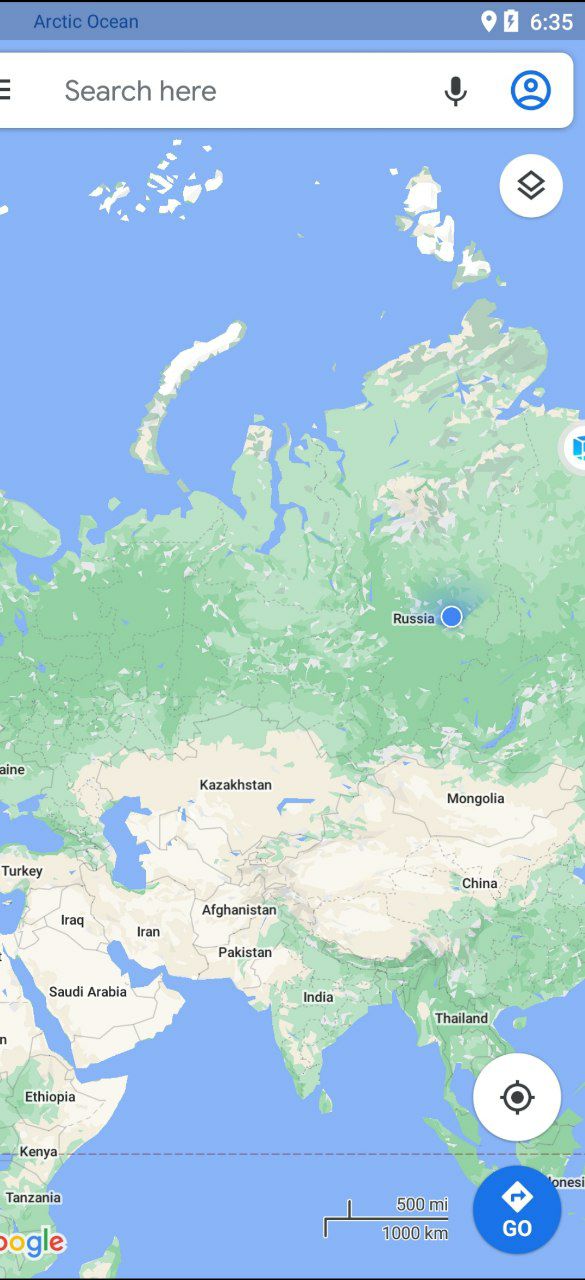
Who has trouble locating inside VMOS use fake GPS and add your country
1. Go to developer options
2. Choice mock location then choice Fake GPS app
Who has trouble locating inside VMOS use fake GPS and add your country
1. Go to developer options
2. Choice mock location then choice Fake GPS app
🌭1
Inability to install applications imported from the original system:
We recently discovered that the system followed by the Google Play Store
It installs applications in small and divided parts, so some applications need to install their own program like Sai app
SAI:
is an app for installing and exporting split APKs - apps that consist of multiple APKs.
SAI can install apps using standard Android API, using root access or using Shizuku.
Please note: that SAI only installs user-provided files and is not responsible for those apps behavior.
Please also note, that some devices/ROMs aren't supported by SAI, that has to do with bad Android API implementation in said ROMs and can't be fixed on app side.
Download the app from Play Store
We recently discovered that the system followed by the Google Play Store
It installs applications in small and divided parts, so some applications need to install their own program like Sai app
SAI:
is an app for installing and exporting split APKs - apps that consist of multiple APKs.
SAI can install apps using standard Android API, using root access or using Shizuku.
Please note: that SAI only installs user-provided files and is not responsible for those apps behavior.
Please also note, that some devices/ROMs aren't supported by SAI, that has to do with bad Android API implementation in said ROMs and can't be fixed on app side.
Download the app from Play Store
❤1👍1🌭1
PUBG Information:
1. Rules of Conduct:
Before using the game you should read the Rules of Conduct and avoid it
2. Privacy Policy:
You should read the privacy policy to see what data the game collects about you
Anti-Cheating System:
will always keep an eye on players' behavior in game strictly. Any rule violations in the game will be punished after detected by system .
1. Use any cheating tools in the game;
2. Using any unauthorized 3rd-party program to log in the game that results in changing the client file data;
3. Any changes of client file data illegally, for example: Remove the grass or change the grass models in game;
4. Use an unofficial game client to play the game.
5. Fraudulent players in the game or promote illegal information or websites may cause players to lose their accounts or lose money.
6. Team games with cheating teammates multiple times.
7. Use any unauthorized payment channel to recharge UC.
8. Team up with players in other team.
In addition,please download PUBG Mobile from the App Store/Google Play Store or any other official stores to play the game. Unofficial/Cracked game clients are not supported and will lead to your account being banned.
If the rule violation occurred after your account has been hacked and thus affecting the game or the other players' rights, the penalty will be applied to your account regardless of who has been using it. We strongly suggest you do not share your account with other players to avoid the risk of being banned
also read this telegraph link
Please, pay attention:
The application until this moment has not been added to the blacklist of the game and does not cause any of the bans
1. Please read the game rules
2. Change your phone type inside settings vmos to another phone
3. Don't use roms support root
4. Don't add hacks app like lucky patcher or any like those apps
5. Do not cut off the internet connection while in the game
1. Rules of Conduct:
Before using the game you should read the Rules of Conduct and avoid it
2. Privacy Policy:
You should read the privacy policy to see what data the game collects about you
Anti-Cheating System:
will always keep an eye on players' behavior in game strictly. Any rule violations in the game will be punished after detected by system .
1. Use any cheating tools in the game;
2. Using any unauthorized 3rd-party program to log in the game that results in changing the client file data;
3. Any changes of client file data illegally, for example: Remove the grass or change the grass models in game;
4. Use an unofficial game client to play the game.
5. Fraudulent players in the game or promote illegal information or websites may cause players to lose their accounts or lose money.
6. Team games with cheating teammates multiple times.
7. Use any unauthorized payment channel to recharge UC.
8. Team up with players in other team.
In addition,please download PUBG Mobile from the App Store/Google Play Store or any other official stores to play the game. Unofficial/Cracked game clients are not supported and will lead to your account being banned.
If the rule violation occurred after your account has been hacked and thus affecting the game or the other players' rights, the penalty will be applied to your account regardless of who has been using it. We strongly suggest you do not share your account with other players to avoid the risk of being banned
also read this telegraph link
Please, pay attention:
The application until this moment has not been added to the blacklist of the game and does not cause any of the bans
1. Please read the game rules
2. Change your phone type inside settings vmos to another phone
3. Don't use roms support root
4. Don't add hacks app like lucky patcher or any like those apps
5. Do not cut off the internet connection while in the game
PUBG EMEA
Rules of Conduct · PUBG EMEA
Rules of Conduct 1. General Rule This Rules of Conduct regulate general matters that end users and company should comply with in relation to the services of PLAYERUNKNOWN’S BATTLEGROUNDS (hereinafter referred to as “Game”) provided by PUBG Corporation (“PUBG”).…
🌭1
General questions VMOS for Android Solving problems How to setup an outbound proxy
1. How to setup an outbound proxy
2. How to use VMOS with Tor
How to use VMOS with PIA (Private Internet Access)
3. How to use VMOS with TorGuard
4. How to use VMOS with NordVPN
5. How to use VMOS with Shadowsocks
Limitations
This article explains how to set up some of the most popular proxys to work with VMOS.
How to use VMOS with Tor:
Open VMOS and go to Settings —— Proxy settings. Download "Orbot: Proxy with Tor" by tapping on Configure Tor® integration button or directly from Google Play.
Open Orbot and press the Start button on the application's main screen.
Go back to the Proxy Settings screen of VMOS.
All the required fields will be pre-filled:
Field Value
Proxy host: 127.0.0.1
Proxy port : 9050
enter these values manually, then set the Orbot proxy as a default one.
Please note, VMOS will now forward all traffic through Orbot proxy, if you disable Orbot proxy, then Internet connection will be unavailable until you disable outbound proxy settings
How to use VMOS with PIA (Private Internet Access):
here we presume that you are already a PIA VPN client and have it installed on your device
Open VMOS and go to Settings —— Proxy settings.
Tap on the Add proxy button and enter the following data:
Field Value
Proxy host: proxy-nl.privateinternetaccess.com
Proxy port : 1080
You also need to fill out the Username/Password fields. To do so, log in to the Client Control Panel on the PIA website. Click the Generate Password button under the Generate SOCKS Password section. A Username starting with "x" and a random Password will be shown. Use them to fill out the Username and Password fields in VMOS.
Set this proxy as a default one by toggling the switch, then click Save.
How to use VMOS with TorGuard:
here we presume that you are already a TorGuard client and have it installed on your device
Open VMOS and go to Settings —— Proxy settings.
Tap on the Add proxy button and enter the following data:
Field Value
Proxy type : SOCKS5
Proxy host:
proxy.torguard.org or proxy.torguard.io
Proxy port 1080 or 1085 or 1090
For Username and Password fields, enter your proxy username and proxy password you have chosen at TorGuard signup.
Set this proxy as a default one by toggling the switch, then click Save.
How to use VMOS with NordVPN:
Open VMOS and go to Settings —— Proxy settings.
Tap on the Add proxy button and enter the following data:
Field Value
Proxy host any server save for "Obfuscated" from this list
Proxy port : 1080
For Username and Password fields, enter your NordVPN Username and Password.
Set this proxy as a default one by toggling the switch, then click Save.
How to use VMOS with Shadowsocks:
here we presume that you have already configured a Shadowsocks server and a client on your device
Open VMOS and go to Settings - Proxy settings.
Tap on the Add proxy server and fill the fields:
Field Value
Proxy host: 127.0.0.1
Proxy port : 1080
Tap on Save and select
Limitations
There are several factors that can prevent certain traffic from being routed through the outgoing proxy.
Then re-route traffic that goes through it.
Note:
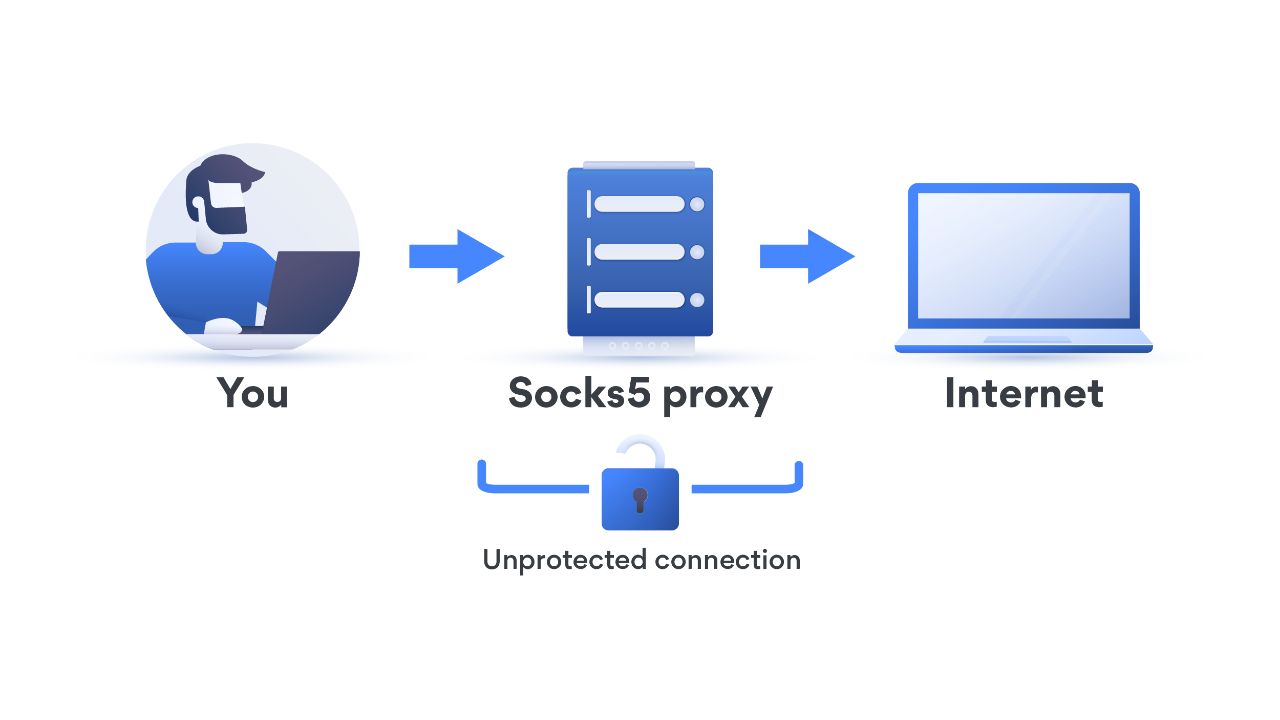
A. Socks4, Socks4A, HTTP, HTTP_Connect, Reverse proxy, not working with VMOS Only Socks5
B. Only for Chinese Version
Please see this Picture
1. How to setup an outbound proxy
2. How to use VMOS with Tor
How to use VMOS with PIA (Private Internet Access)
3. How to use VMOS with TorGuard
4. How to use VMOS with NordVPN
5. How to use VMOS with Shadowsocks
Limitations
This article explains how to set up some of the most popular proxys to work with VMOS.
How to use VMOS with Tor:
Open VMOS and go to Settings —— Proxy settings. Download "Orbot: Proxy with Tor" by tapping on Configure Tor® integration button or directly from Google Play.
Open Orbot and press the Start button on the application's main screen.
Go back to the Proxy Settings screen of VMOS.
All the required fields will be pre-filled:
Field Value
Proxy host: 127.0.0.1
Proxy port : 9050
enter these values manually, then set the Orbot proxy as a default one.
Please note, VMOS will now forward all traffic through Orbot proxy, if you disable Orbot proxy, then Internet connection will be unavailable until you disable outbound proxy settings
How to use VMOS with PIA (Private Internet Access):
here we presume that you are already a PIA VPN client and have it installed on your device
Open VMOS and go to Settings —— Proxy settings.
Tap on the Add proxy button and enter the following data:
Field Value
Proxy host: proxy-nl.privateinternetaccess.com
Proxy port : 1080
You also need to fill out the Username/Password fields. To do so, log in to the Client Control Panel on the PIA website. Click the Generate Password button under the Generate SOCKS Password section. A Username starting with "x" and a random Password will be shown. Use them to fill out the Username and Password fields in VMOS.
Set this proxy as a default one by toggling the switch, then click Save.
How to use VMOS with TorGuard:
here we presume that you are already a TorGuard client and have it installed on your device
Open VMOS and go to Settings —— Proxy settings.
Tap on the Add proxy button and enter the following data:
Field Value
Proxy type : SOCKS5
Proxy host:
proxy.torguard.org or proxy.torguard.io
Proxy port 1080 or 1085 or 1090
For Username and Password fields, enter your proxy username and proxy password you have chosen at TorGuard signup.
Set this proxy as a default one by toggling the switch, then click Save.
How to use VMOS with NordVPN:
Open VMOS and go to Settings —— Proxy settings.
Tap on the Add proxy button and enter the following data:
Field Value
Proxy host any server save for "Obfuscated" from this list
Proxy port : 1080
For Username and Password fields, enter your NordVPN Username and Password.
Set this proxy as a default one by toggling the switch, then click Save.
How to use VMOS with Shadowsocks:
here we presume that you have already configured a Shadowsocks server and a client on your device
Open VMOS and go to Settings - Proxy settings.
Tap on the Add proxy server and fill the fields:
Field Value
Proxy host: 127.0.0.1
Proxy port : 1080
Tap on Save and select
Limitations
There are several factors that can prevent certain traffic from being routed through the outgoing proxy.
Then re-route traffic that goes through it.
Note:
A. Socks4, Socks4A, HTTP, HTTP_Connect, Reverse proxy, not working with VMOS Only Socks5
B. Only for Chinese Version
Please see this Picture
👍2
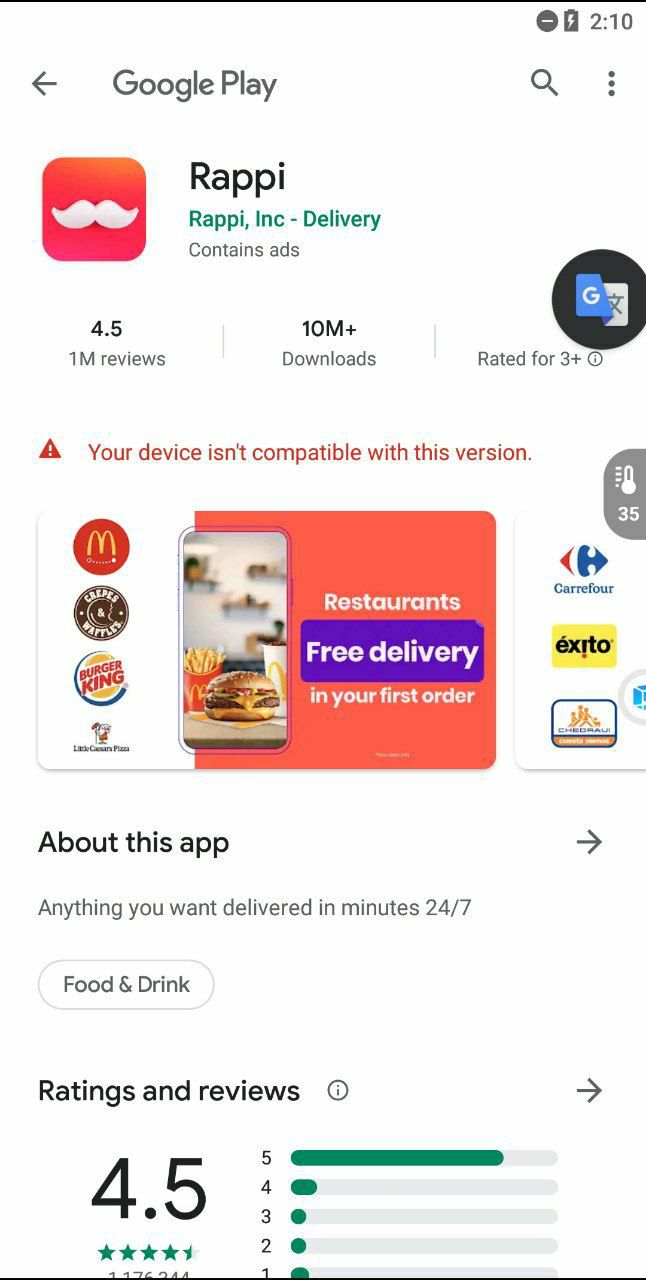
Issue "A Your device isn't compatible with this version."
It appears to be an issue with Google's Android operating system.To fixthe“your device is not compatible with this version” error message, try
1. Restart Your Device
2. Go To Settings > Apps > Google Play Store > Storage > Clear data
If this method does not work, Incompatibility does not necessarily mean that your Android device has some technical problems. There may be some problems set by the application developer, such as geo-restrictions. Some applications are launched for particular countries. In case you live in a different country where the app hasn’t been launched, then you might face incompatibility error.
for more info please read this
It appears to be an issue with Google's Android operating system.To fixthe“your device is not compatible with this version” error message, try
1. Restart Your Device
2. Go To Settings > Apps > Google Play Store > Storage > Clear data
If this method does not work, Incompatibility does not necessarily mean that your Android device has some technical problems. There may be some problems set by the application developer, such as geo-restrictions. Some applications are launched for particular countries. In case you live in a different country where the app hasn’t been launched, then you might face incompatibility error.
for more info please read this
🌭1