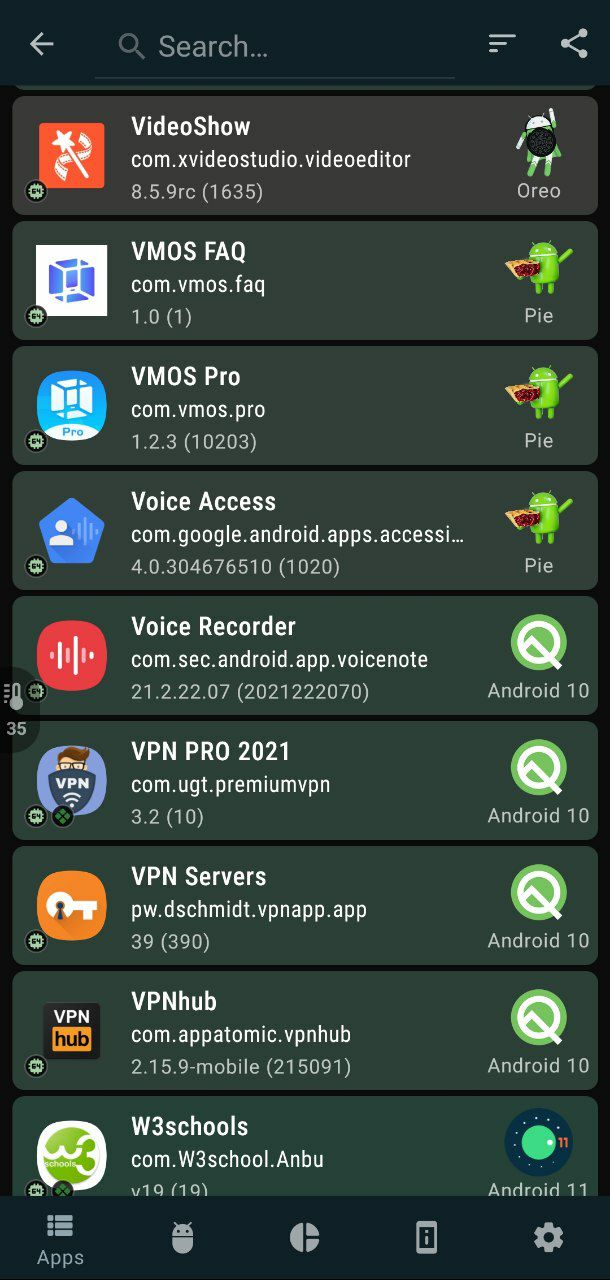
20201222_004022.jpg
218.1 KB
These are the best settings for GFX Tools but make sure
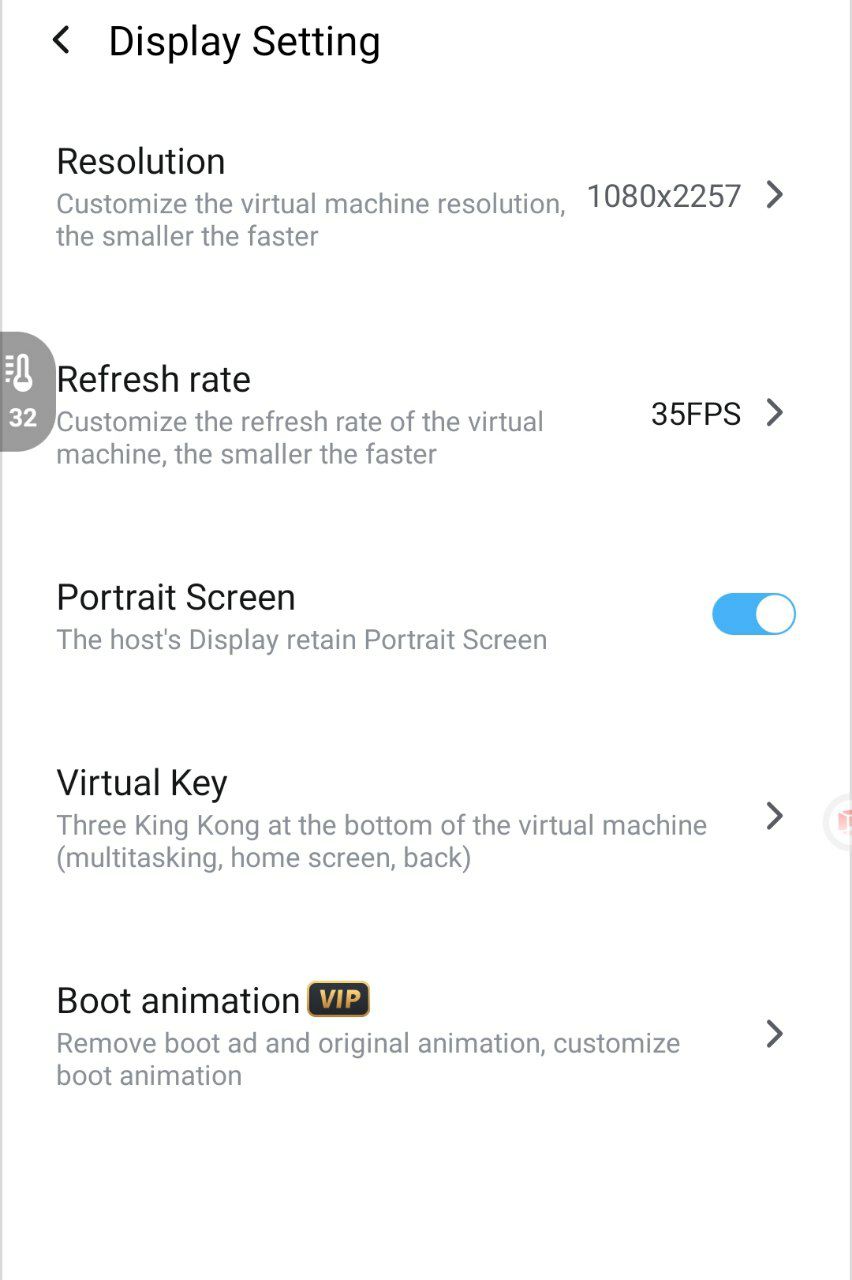
1. FPS in VM Settings only 40 FPS
2. You did everything written here
3. Vulkan not supported in VMOS so only OpenGL 3.2
4. Don't worry no ban
5. Make sure your server has good response speed and green color (PING)
6. There's another app called PGT+ It's good too to run PUBG Without lag
1. FPS in VM Settings only 40 FPS
2. You did everything written here
3. Vulkan not supported in VMOS so only OpenGL 3.2
4. Don't worry no ban
5. Make sure your server has good response speed and green color (PING)
6. There's another app called PGT+ It's good too to run PUBG Without lag
🌭1
GFX Tools For PUBG Mobile
• Resolution: 1280(HD) or Default
The resolution has a big impact on graphics. I recommend Default for most people. If your game is still lagging, then switch to 1280(HD). Do not go below that as the graphics will be really unplayable.
• Graphics: So smooth or smooth
Smooth is the best quality setting you can select in the GFX tool for Pubg mobile. Unless you have a gaming phone. Smooth can fix the lag issue as well as get your game the FPS boost you need. So smooth is even better, but the graphics will drop significantly. So only low-end devices should use this.
• FPS: 40
Higher FPS smoother gameplay. All mobile devices come with a 60hz refresh rate. So it is always recommended that you have a 40 FPS limit because it's needs a huge phone for run 60HZ. If you are lagging a lot then select 30 FPS only as a last resort.
• Antialiasing: Disablec or x2 only
Definitely Disable it. Unless you have a very high-end phone, you should not enable antialiasing in GFX Tool settings for Pubg mobile.
• Styles: Colorful
This is a personal preference. There is no impact on FPS as such. Classic is the most used. I prefer Colorful. It’s up to you. Colourful can help spot enemies better for some people.
• Rendering Quality: Low
Set it at low. Unless you have a gaming phone like POCO F1. Or at least a snapdragon 730g or equivalent.
• Shadows: Disable
No advantage in games. You never really notice shadows while playing pubg mobile. Also, shadows have a lot of impact on FPS. So turn it off.
• Shadow Distance: Low
When shadows are off this setting makes to difference. I recommend you turn off shadows. If you want shadows than at least turn this setting to low. It will help you get the FPS boost you need to play pubg mobile.
• Moving Shadows: Disable
Anything setting related to shadows can be safely disabled. Shadows cause lag. You can disable these settings which I feel is the greatest advantage of GFX settings for pubg mobile
Texture quality should be kept default or high because so that you can spot players easily. Low makes the game look really bad. So use it as a last option. I don’t recommend it personally.
• Effects Quality: Low
The effects are best set to low. You can get the best performance increase at a very low cost. Set
this to low. For snipers, you need this set to high.
Improvement for Effects: Low
Similar to the above setting. Set it to low.
• Objects LOD Distance: Low
This setting deals with the level of detail (LOD). Higher settings require more resources and lower settings require less. For snipers, you need this set to be high
• Foliage LOD Distance: Low
Same as above just instead of objects it deals with foliage settings in the gfx tool.
• Colour Format: 32bit or 64bit
Set this to 32bit if you want an FPS boost. Set it to 64bit if you want better quality.
• Detail Mode: Default
Set it to default if you are a close range and a mid-range fighter. If you a sniper, set it to high. You will be able to spot players better.
• Light Effects: Disable
You do not need light effects. They cause FPS issues. You will also have difficulty spotting players.
• Graphics API: Vulcan
Vulcan API is recommended for devices with android version 8 and higher.
But in vmos only OpenGL if you get better performance.
This is a must-have. Thanks to the GFX tool in Pubg mobile, you can enable this setting. With this, you will have a better GPU performance while playing Pubg Mobile
• Sound Quality: Low
Better the sound better your chances of hearing the footsteps. So get good headphones or earphones and set this setting to high if possible.
For VMOS use only low sounds
• Save Controls: Enable
Saves your current controls, so you do not have to edit them again and again.
• Resolution: 1280(HD) or Default
The resolution has a big impact on graphics. I recommend Default for most people. If your game is still lagging, then switch to 1280(HD). Do not go below that as the graphics will be really unplayable.
• Graphics: So smooth or smooth
Smooth is the best quality setting you can select in the GFX tool for Pubg mobile. Unless you have a gaming phone. Smooth can fix the lag issue as well as get your game the FPS boost you need. So smooth is even better, but the graphics will drop significantly. So only low-end devices should use this.
• FPS: 40
Higher FPS smoother gameplay. All mobile devices come with a 60hz refresh rate. So it is always recommended that you have a 40 FPS limit because it's needs a huge phone for run 60HZ. If you are lagging a lot then select 30 FPS only as a last resort.
• Antialiasing: Disablec or x2 only
Definitely Disable it. Unless you have a very high-end phone, you should not enable antialiasing in GFX Tool settings for Pubg mobile.
• Styles: Colorful
This is a personal preference. There is no impact on FPS as such. Classic is the most used. I prefer Colorful. It’s up to you. Colourful can help spot enemies better for some people.
• Rendering Quality: Low
Set it at low. Unless you have a gaming phone like POCO F1. Or at least a snapdragon 730g or equivalent.
• Shadows: Disable
No advantage in games. You never really notice shadows while playing pubg mobile. Also, shadows have a lot of impact on FPS. So turn it off.
• Shadow Distance: Low
When shadows are off this setting makes to difference. I recommend you turn off shadows. If you want shadows than at least turn this setting to low. It will help you get the FPS boost you need to play pubg mobile.
• Moving Shadows: Disable
Anything setting related to shadows can be safely disabled. Shadows cause lag. You can disable these settings which I feel is the greatest advantage of GFX settings for pubg mobile
Texture quality should be kept default or high because so that you can spot players easily. Low makes the game look really bad. So use it as a last option. I don’t recommend it personally.
• Effects Quality: Low
The effects are best set to low. You can get the best performance increase at a very low cost. Set
this to low. For snipers, you need this set to high.
Improvement for Effects: Low
Similar to the above setting. Set it to low.
• Objects LOD Distance: Low
This setting deals with the level of detail (LOD). Higher settings require more resources and lower settings require less. For snipers, you need this set to be high
• Foliage LOD Distance: Low
Same as above just instead of objects it deals with foliage settings in the gfx tool.
• Colour Format: 32bit or 64bit
Set this to 32bit if you want an FPS boost. Set it to 64bit if you want better quality.
• Detail Mode: Default
Set it to default if you are a close range and a mid-range fighter. If you a sniper, set it to high. You will be able to spot players better.
• Light Effects: Disable
You do not need light effects. They cause FPS issues. You will also have difficulty spotting players.
• Graphics API: Vulcan
Vulcan API is recommended for devices with android version 8 and higher.
But in vmos only OpenGL if you get better performance.
This is a must-have. Thanks to the GFX tool in Pubg mobile, you can enable this setting. With this, you will have a better GPU performance while playing Pubg Mobile
• Sound Quality: Low
Better the sound better your chances of hearing the footsteps. So get good headphones or earphones and set this setting to high if possible.
For VMOS use only low sounds
• Save Controls: Enable
Saves your current controls, so you do not have to edit them again and again.
Google Play
GFX Tool: Launcher & Optimizer - Apps on Google Play
A simple way to improve your game performance
🌭1
GFX Tools For PUBG Mobile
• Resolution: 1280(HD) or Default
The resolution has a big impact on graphics. I recommend Default for most people. If your game is still lagging, then switch to 1280(HD). Do not go below that as the graphics will be really unplayable.
• Graphics: So smooth or smooth
Smooth is the best quality setting you can select in the GFX tool for Pubg mobile. Unless you have a gaming phone. Smooth can fix the lag issue as well as get your game the FPS boost you need. So smooth is even better, but the graphics will drop significantly. So only low-end devices should use this.
• FPS: 40
Higher FPS smoother gameplay. All mobile devices come with a 60hz refresh rate. So it is always recommended that you have a 40 FPS limit because it's needs a huge phone for run 60HZ. If you are lagging a lot then select 30 FPS only as a last resort.
• Antialiasing: Disablec or x2 only
Definitely Disable it. Unless you have a very high-end phone, you should not enable antialiasing in GFX Tool settings for Pubg mobile.
• Styles: Colorful
This is a personal preference. There is no impact on FPS as such. Classic is the most used. I prefer Colorful. It’s up to you. Colourful can help spot enemies better for some people.
• Rendering Quality: Low
Set it at low. Unless you have a gaming phone like POCO F1. Or at least a snapdragon 730g or equivalent.
• Shadows: Disable
No advantage in games. You never really notice shadows while playing pubg mobile. Also, shadows have a lot of impact on FPS. So turn it off.
• Shadow Distance: Low
When shadows are off this setting makes to difference. I recommend you turn off shadows. If you want shadows than at least turn this setting to low. It will help you get the FPS boost you need to play pubg mobile.
• Moving Shadows: Disable
Anything setting related to shadows can be safely disabled. Shadows cause lag. You can disable these settings which I feel is the greatest advantage of GFX settings for pubg mobile
Texture quality should be kept default or high because so that you can spot players easily. Low makes the game look really bad. So use it as a last option. I don’t recommend it personally.
• Effects Quality: Low
The effects are best set to low. You can get the best performance increase at a very low cost. Set
this to low. For snipers, you need this set to high.
Improvement for Effects: Low
Similar to the above setting. Set it to low.
• Objects LOD Distance: Low
This setting deals with the level of detail (LOD). Higher settings require more resources and lower settings require less. For snipers, you need this set to be high
• Foliage LOD Distance: Low
Same as above just instead of objects it deals with foliage settings in the gfx tool.
• Colour Format: 32bit or 64bit
Set this to 32bit if you want an FPS boost. Set it to 64bit if you want better quality.
• Detail Mode: Default
Set it to default if you are a close range and a mid-range fighter. If you a sniper, set it to high. You will be able to spot players better.
• Light Effects: Disable
You do not need light effects. They cause FPS issues. You will also have difficulty spotting players.
• Graphics API: Vulcan
Vulcan API is recommended for devices with android version 8 and higher.
But in vmos only OpenGL if you get better performance.
This is a must-have. Thanks to the GFX tool in Pubg mobile, you can enable this setting. With this, you will have a better GPU performance while playing Pubg Mobile
• Sound Quality: Low
Better the sound better your chances of hearing the footsteps. So get good headphones or earphones and set this setting to high if possible.
For VMOS use only low sounds
• Save Controls: Enable
Saves your current controls, so you do not have to edit them again and again.
• Resolution: 1280(HD) or Default
The resolution has a big impact on graphics. I recommend Default for most people. If your game is still lagging, then switch to 1280(HD). Do not go below that as the graphics will be really unplayable.
• Graphics: So smooth or smooth
Smooth is the best quality setting you can select in the GFX tool for Pubg mobile. Unless you have a gaming phone. Smooth can fix the lag issue as well as get your game the FPS boost you need. So smooth is even better, but the graphics will drop significantly. So only low-end devices should use this.
• FPS: 40
Higher FPS smoother gameplay. All mobile devices come with a 60hz refresh rate. So it is always recommended that you have a 40 FPS limit because it's needs a huge phone for run 60HZ. If you are lagging a lot then select 30 FPS only as a last resort.
• Antialiasing: Disablec or x2 only
Definitely Disable it. Unless you have a very high-end phone, you should not enable antialiasing in GFX Tool settings for Pubg mobile.
• Styles: Colorful
This is a personal preference. There is no impact on FPS as such. Classic is the most used. I prefer Colorful. It’s up to you. Colourful can help spot enemies better for some people.
• Rendering Quality: Low
Set it at low. Unless you have a gaming phone like POCO F1. Or at least a snapdragon 730g or equivalent.
• Shadows: Disable
No advantage in games. You never really notice shadows while playing pubg mobile. Also, shadows have a lot of impact on FPS. So turn it off.
• Shadow Distance: Low
When shadows are off this setting makes to difference. I recommend you turn off shadows. If you want shadows than at least turn this setting to low. It will help you get the FPS boost you need to play pubg mobile.
• Moving Shadows: Disable
Anything setting related to shadows can be safely disabled. Shadows cause lag. You can disable these settings which I feel is the greatest advantage of GFX settings for pubg mobile
Texture quality should be kept default or high because so that you can spot players easily. Low makes the game look really bad. So use it as a last option. I don’t recommend it personally.
• Effects Quality: Low
The effects are best set to low. You can get the best performance increase at a very low cost. Set
this to low. For snipers, you need this set to high.
Improvement for Effects: Low
Similar to the above setting. Set it to low.
• Objects LOD Distance: Low
This setting deals with the level of detail (LOD). Higher settings require more resources and lower settings require less. For snipers, you need this set to be high
• Foliage LOD Distance: Low
Same as above just instead of objects it deals with foliage settings in the gfx tool.
• Colour Format: 32bit or 64bit
Set this to 32bit if you want an FPS boost. Set it to 64bit if you want better quality.
• Detail Mode: Default
Set it to default if you are a close range and a mid-range fighter. If you a sniper, set it to high. You will be able to spot players better.
• Light Effects: Disable
You do not need light effects. They cause FPS issues. You will also have difficulty spotting players.
• Graphics API: Vulcan
Vulcan API is recommended for devices with android version 8 and higher.
But in vmos only OpenGL if you get better performance.
This is a must-have. Thanks to the GFX tool in Pubg mobile, you can enable this setting. With this, you will have a better GPU performance while playing Pubg Mobile
• Sound Quality: Low
Better the sound better your chances of hearing the footsteps. So get good headphones or earphones and set this setting to high if possible.
For VMOS use only low sounds
• Save Controls: Enable
Saves your current controls, so you do not have to edit them again and again.
Google Play
GFX Tool: Launcher & Optimizer - Apps on Google Play
A simple way to improve your game performance
👍1🌭1
IMG_20201222_195539.jpg
325.8 KB
PGT+ For PUBG Mobile:
Another app for shrinking lags with much more options
But for you need to do this steps one by one all of them in orginal OS and VMOS too
Note: some time the lag because of your slow internet or wifi so fix your ping first then run those steps
Another app for shrinking lags with much more options
But for you need to do this steps one by one all of them in orginal OS and VMOS too
Note: some time the lag because of your slow internet or wifi so fix your ping first then run those steps
👍1🌭1
Guys all of you understand the work of this group in a wrongly way. We can't help with everything.
We can find solutions to some problems. Some of them we don't have solution other than sending the error to the developers for repair.
Note: We cannot give wrong information or even discuss anything from the to-do list. We are not authorized to answer questions that can only be answered by the developers themselves
We cannot give you time for anything or say that they will fix something wrong. We send them errors and reports, and we await answers from them
If they don't send us something, we can't answer you
I hope you can understand this ⚠️
We can find solutions to some problems. Some of them we don't have solution other than sending the error to the developers for repair.
Note: We cannot give wrong information or even discuss anything from the to-do list. We are not authorized to answer questions that can only be answered by the developers themselves
We cannot give you time for anything or say that they will fix something wrong. We send them errors and reports, and we await answers from them
If they don't send us something, we can't answer you
I hope you can understand this ⚠️
🌭1
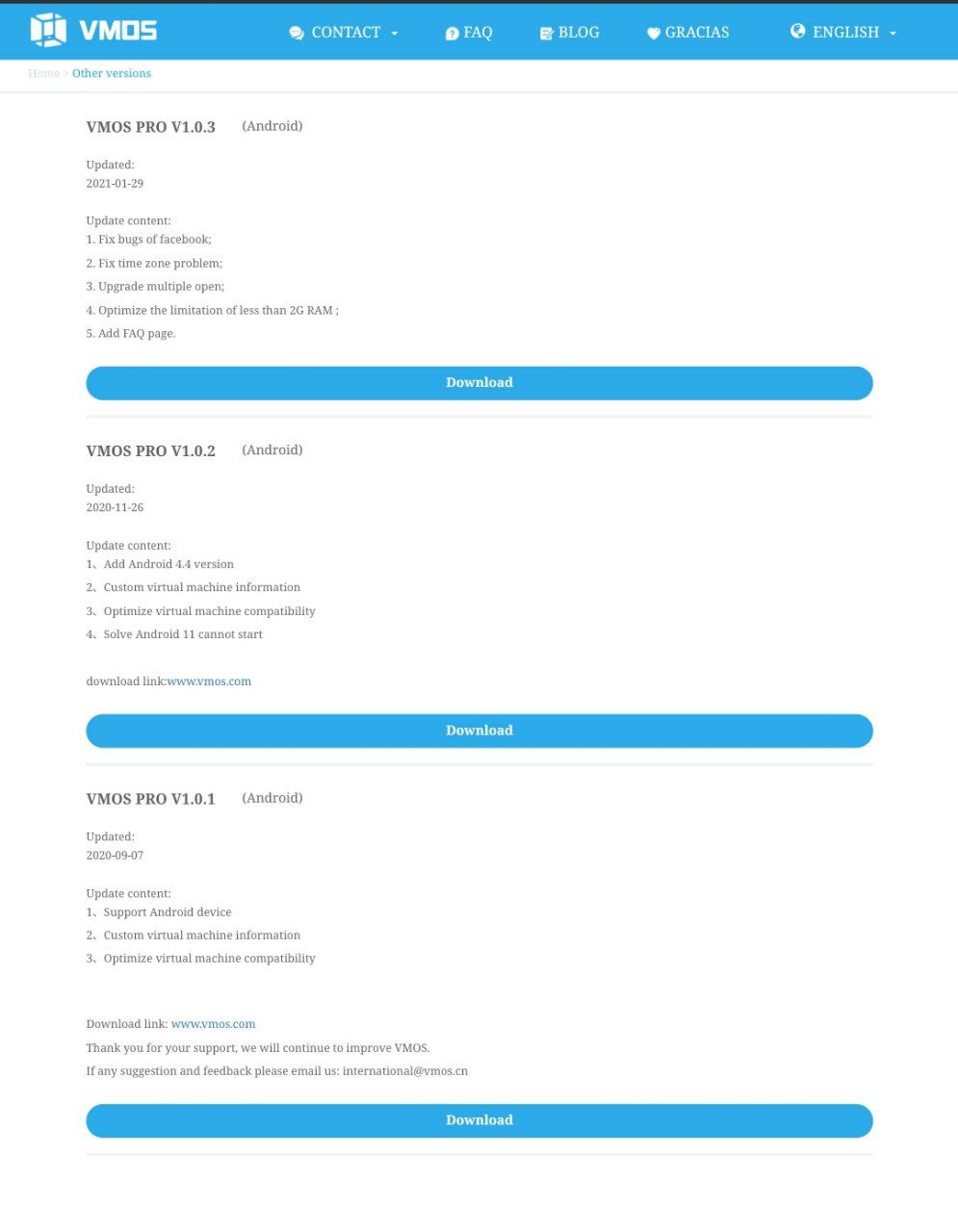
Update Website:
You can now see the change history and download previous versions as well from here
https://www.vmos.com/history/
You can now see the change history and download previous versions as well from here
https://www.vmos.com/history/
🌭1
Error and reports:
Most of the errors that occur within vmos are the result of using modified roms or cracked version apk, which often contain many and unstable errors.
Therefore, reporting these mistakes causes our confusion and wastes time, nothing more, whoever reports any error and is found to be using modified versions or ROMs will be excluded from the group
Only use the official roms :)
Most of the errors that occur within vmos are the result of using modified roms or cracked version apk, which often contain many and unstable errors.
Therefore, reporting these mistakes causes our confusion and wastes time, nothing more, whoever reports any error and is found to be using modified versions or ROMs will be excluded from the group
Only use the official roms :)
👍1🌭1
High refresh rate:
If you have a samsung phone with good specifications.
You can try these possibly improve the gaming experience in a phone but should be your phone screen support more than 60HZ by using this app
If you have a samsung phone with good specifications.
You can try these possibly improve the gaming experience in a phone but should be your phone screen support more than 60HZ by using this app
🌭1
What is the function of RAM in an Android Phone?
First, the name. You don't really need to know that "RAM" stands for "random access memory." But what you do need to know is that RAM is a super-fast type of storage — faster than your phone's main storage where your apps, photos, videos, and music live — and it helps your smartphone work and feel fast.
Here's how RAM works and what it does in your smartphone:
• You can think of RAM as your pocket and your phone's main storage as your backpack. It's much faster to pull something out of your pocket than it is to pull something out from your backpack.
• When you turn on your phone, and open an app for the first time, your phone pulls the operating system (OS) and app's data from your phone's slower main storage and stores the bulk of that OS and app data in your phone's faster RAM so you can use different elements and features of the OS and app quickly.
• When you're finished with the app you're using, your phone keeps the app and whatever you were doing on it in your phone's RAM, even if you switch to another app.
• When you return to an app you used a while ago, it'll open right where you left off, as if you never even left the app, because it's been stored in your phone's RAM. Essentially, apps you used are kept running in the background while you use other apps.
• Switching between apps and picking up right where you left off is often called "multitasking." If a phone is said to multitask well, it's because it makes good use of RAM or simply has a ton of it.
• If a phone didn't have RAM, apps would fully close whenever you switch apps. That means apps would need to fully re-open, as if you opened them for the first time after turning on your phone, which causes a delay before you can use the app.
• Your phone's main slower storage could potentially keep your OS and used apps running in the background, but it's much, much slower than RAM. • Your phone could have the fastest chip in the world and it would still feel slow without RAM.
So, yes, more RAM is generally better, but it's not that simple
Indeed, more RAM means your phone can store more of the OS data and apps you often use for quick access. It gives off the impression that your phone is incredibly fast because the OS and apps you've previously used are ready to use straight away when you return to them.
You want fix lag = empty your app in background {ram memory}
First, the name. You don't really need to know that "RAM" stands for "random access memory." But what you do need to know is that RAM is a super-fast type of storage — faster than your phone's main storage where your apps, photos, videos, and music live — and it helps your smartphone work and feel fast.
Here's how RAM works and what it does in your smartphone:
• You can think of RAM as your pocket and your phone's main storage as your backpack. It's much faster to pull something out of your pocket than it is to pull something out from your backpack.
• When you turn on your phone, and open an app for the first time, your phone pulls the operating system (OS) and app's data from your phone's slower main storage and stores the bulk of that OS and app data in your phone's faster RAM so you can use different elements and features of the OS and app quickly.
• When you're finished with the app you're using, your phone keeps the app and whatever you were doing on it in your phone's RAM, even if you switch to another app.
• When you return to an app you used a while ago, it'll open right where you left off, as if you never even left the app, because it's been stored in your phone's RAM. Essentially, apps you used are kept running in the background while you use other apps.
• Switching between apps and picking up right where you left off is often called "multitasking." If a phone is said to multitask well, it's because it makes good use of RAM or simply has a ton of it.
• If a phone didn't have RAM, apps would fully close whenever you switch apps. That means apps would need to fully re-open, as if you opened them for the first time after turning on your phone, which causes a delay before you can use the app.
• Your phone's main slower storage could potentially keep your OS and used apps running in the background, but it's much, much slower than RAM. • Your phone could have the fastest chip in the world and it would still feel slow without RAM.
So, yes, more RAM is generally better, but it's not that simple
Indeed, more RAM means your phone can store more of the OS data and apps you often use for quick access. It gives off the impression that your phone is incredibly fast because the OS and apps you've previously used are ready to use straight away when you return to them.
You want fix lag = empty your app in background {ram memory}
🌭1
VM Running:
Sprout. When there are more than one ROM in the same emulator, then open any of VMOS roms in this case all your apps in all your roms will running too so don't install so many apps
Sprout. When there are more than one ROM in the same emulator, then open any of VMOS roms in this case all your apps in all your roms will running too so don't install so many apps
❤1👍1🌭1
Island APK:
If you want to use more than one version of any application you want like 2 version of same vmos
On the Island, you can:
* Isolate app, for privacy protection.
* Clone app, for parallel running.
* Freeze app, to completely block its background behaviors.
* Hide app, for various reasons.
* Use VPN only on one side, or different VPN on both sides.
If you want to use more than one version of any application you want like 2 version of same vmos
On the Island, you can:
* Isolate app, for privacy protection.
* Clone app, for parallel running.
* Freeze app, to completely block its background behaviors.
* Hide app, for various reasons.
* Use VPN only on one side, or different VPN on both sides.
Google Play
Island - Apps on Google Play
Discover the secret Island inside Android, release its mysterious power!
❤1🌭1
Stickers are not on the blacklist:
• https://t.me/addstickers/Menhera_chan_by_cocopry
• https://t.me/addstickers/emmi_vkhddiary
• https://t.me/addstickers/Skull
• https://t.me/addstickers/charming3d
• https://t.me/addstickers/DR1_Spoiler_Free
• https://t.me/addstickers/LINE_A_little_girl_Sticker_ENG
• https://t.me/addstickers/LINE_Sarcastic_pigtails_girl
• https://t.me/addstickers/Miyako_by_TgSticker_bot
• https://t.me/addstickers/kizuna_AI
• https://t.me/addstickers/Cinderella_Girls_Stickers
• https://t.me/addstickers/MissHepburn
• https://t.me/addstickers/TextAnimated
• https://t.me/addstickers/StarPatrick
• https://t.me/addstickers/Kizuna_Ai_San
• https://t.me/addstickers/BananaFun
• https://t.me/addstickers/MissDevil
• https://t.me/addstickers/Kermitdafrog
• https://t.me/addstickers/Halloweenkin
• https://t.me/addstickers/HarleyQuinn_m
• https://t.me/addstickers/Fuhrers_favourite_girls
• https://t.me/addstickers/LINE_Menhera_chan_SD_ENG
• https://t.me/addstickers/animegirlfromkpi
• https://t.me/addstickers/DogeTheDog
• https://t.me/addstickers/FunkyGoose
• https://t.me/addstickers/PresidentPutin
• https://t.me/addstickers/SansaStark
• https://t.me/addstickers/WonderWomanDC
• https://t.me/addstickers/LadyVampire
• https://t.me/addstickers/SteampunkJulia
• https://t.me/addstickers/DoggyShark
• https://t.me/addstickers/OctoPaul
• https://t.me/addstickers/tyan2d_anim
• https://t.me/addstickers/FishPrometheus
• https://t.me/addstickers/ThoardofattractivenessbydanielT
• https://t.me/addstickers/HotCherry
• https://t.me/addstickers/emmi_vk
• https://t.me/addstickers/MiladyNoir
• https://t.me/addstickers/DarkAngelxD_1_anim
• https://t.me/addstickers/crewmate_amongus
• https://t.me/addstickers/HarleyQuinn
•https://t.me/addsticker/wanda10
• https://t.me/addstickers/LoveHarley
• https://t.me/addstickers/Hands4Friends
• https://t.me/addstickers/BreadToast
• https://t.me/addstickers/BunnyHazard
• https://t.me/addstickers/Piikachu
• https://t.me/addstickers/UtyaDuck
• https://t.me/addstickers/PresidentPutin
• https://t.me/addstickers/Menhera_chan_by_cocopry
• https://t.me/addstickers/emmi_vkhddiary
• https://t.me/addstickers/Skull
• https://t.me/addstickers/charming3d
• https://t.me/addstickers/DR1_Spoiler_Free
• https://t.me/addstickers/LINE_A_little_girl_Sticker_ENG
• https://t.me/addstickers/LINE_Sarcastic_pigtails_girl
• https://t.me/addstickers/Miyako_by_TgSticker_bot
• https://t.me/addstickers/kizuna_AI
• https://t.me/addstickers/Cinderella_Girls_Stickers
• https://t.me/addstickers/MissHepburn
• https://t.me/addstickers/TextAnimated
• https://t.me/addstickers/StarPatrick
• https://t.me/addstickers/Kizuna_Ai_San
• https://t.me/addstickers/BananaFun
• https://t.me/addstickers/MissDevil
• https://t.me/addstickers/Kermitdafrog
• https://t.me/addstickers/Halloweenkin
• https://t.me/addstickers/HarleyQuinn_m
• https://t.me/addstickers/Fuhrers_favourite_girls
• https://t.me/addstickers/LINE_Menhera_chan_SD_ENG
• https://t.me/addstickers/animegirlfromkpi
• https://t.me/addstickers/DogeTheDog
• https://t.me/addstickers/FunkyGoose
• https://t.me/addstickers/PresidentPutin
• https://t.me/addstickers/SansaStark
• https://t.me/addstickers/WonderWomanDC
• https://t.me/addstickers/LadyVampire
• https://t.me/addstickers/SteampunkJulia
• https://t.me/addstickers/DoggyShark
• https://t.me/addstickers/OctoPaul
• https://t.me/addstickers/tyan2d_anim
• https://t.me/addstickers/FishPrometheus
• https://t.me/addstickers/ThoardofattractivenessbydanielT
• https://t.me/addstickers/HotCherry
• https://t.me/addstickers/emmi_vk
• https://t.me/addstickers/MiladyNoir
• https://t.me/addstickers/DarkAngelxD_1_anim
• https://t.me/addstickers/crewmate_amongus
• https://t.me/addstickers/HarleyQuinn
•https://t.me/addsticker/wanda10
• https://t.me/addstickers/LoveHarley
• https://t.me/addstickers/Hands4Friends
• https://t.me/addstickers/BreadToast
• https://t.me/addstickers/BunnyHazard
• https://t.me/addstickers/Piikachu
• https://t.me/addstickers/UtyaDuck
• https://t.me/addstickers/PresidentPutin
👍2🥰2😱1🌭1
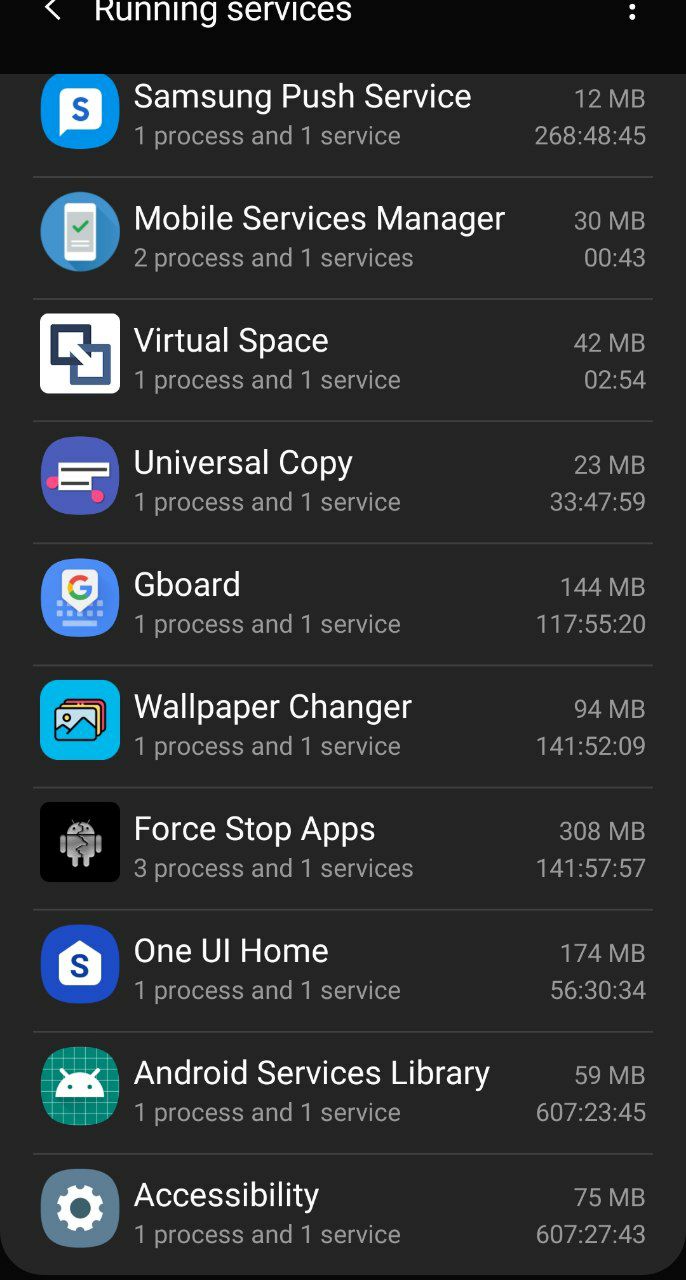
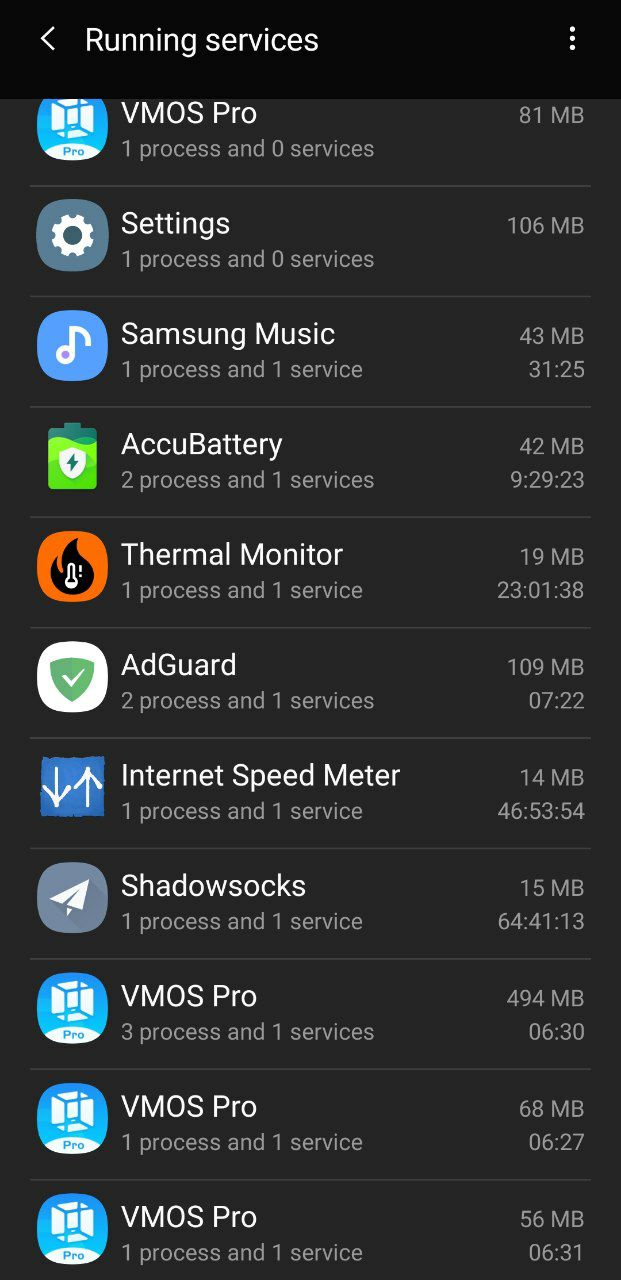
I hope this can explains why VMOS didn't work or there's lag because of low RAM or internal memory
🌭1
Via this application, you can check if the software any app has been updated to be compatible with your phone system or not
📱 APP Checker
📱 APP Checker
🌭1
About send a stickers:
1. Can't send two consecutive stickers from the same user
It's means, when sending a sticker, you need to send a message or anyone else need to send a message to allow you to send another sticker
2. Can't send two stickers from the same package in succession
3. You need to wait 2 minutes for sending Another sticker
Note: Use only permitted stickers & you need reply to a user
1. Can't send two consecutive stickers from the same user
It's means, when sending a sticker, you need to send a message or anyone else need to send a message to allow you to send another sticker
2. Can't send two stickers from the same package in succession
3. You need to wait 2 minutes for sending Another sticker
Note: Use only permitted stickers & you need reply to a user
🌭1
Refresh Rate:
The default screen refresh rate is 60
It's very huge on low phone so please change it to 40-35 it's enough if you didn't Play Games
The default screen refresh rate is 60
It's very huge on low phone so please change it to 40-35 it's enough if you didn't Play Games
🌭1
Reload the ROM:
Some mid-spec phones face the problem of reloading the ROM again when switching between the virtual and the real system, so activate the option to background Keep alive. This problem can be solved.
Some mid-spec phones face the problem of reloading the ROM again when switching between the virtual and the real system, so activate the option to background Keep alive. This problem can be solved.
👍1🌭1